Link Trades in Journal
Trades can easily be linked in the Journal. This is helpful to keep related trades grouped together for easier tracking and analysis.
Some common applications include:
- Covered Calls – keeping stock and selling Calls with different Expirations
- Adjustment/Repair Trades
- Other previously Unmatched trades
This feature is best used in the Life of Trade View in the Journal.
The following steps will allow you to Link Trades: 
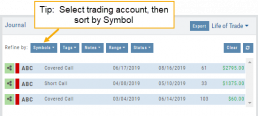
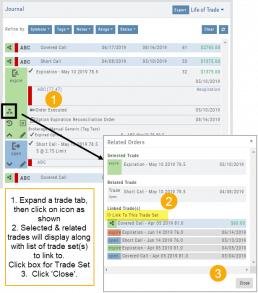
1. After selecting your account and sorting by symbol, expand one of the trade tabs you want to link to another trade group or set.
Click the ‘Link Icon‘
2. A pop-up window will list the Selected (Expanded) Trade, any related trade and Available Trade Sets for that symbol in that account.
Note: You can link trade sets both prior to and following your current, selected trade.
Example: You want to link a May 2019 expired Call to April 2019 and June 2019 Covered Call trade set.
3. Click “Link To This Trade Set” for trade set(s) to link selected trade to, then click “Close“.
In this example, we linked an Expired May 10 2019 short call to an April and June Covered Call trade set.
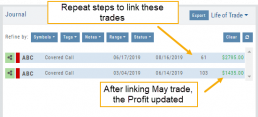
After linking the trade, notice the total Profit (Loss) Amount updated, but the trade duration did not.
This is because the May Call falls in between the original April trade entry and the June expiration.
If you have more trade sets to link, repeat the previous steps as outlined.
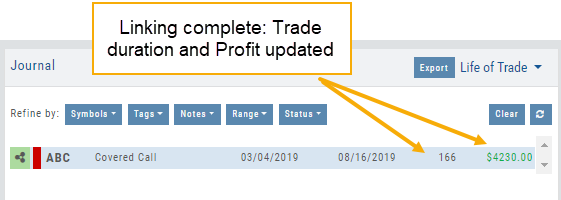
Final note: If you link a trade in error, simply expand the same trade tab and ‘uncheck’ the Link This Trade Set box.
Manual Account Overview
A Manual Account is versatile resource tool which can enhance your trading effectiveness. You can also use this to track trades from an outside brokerage account.
Use the Manual Account for educational purposes.
- It offers flexibility and control, while providing the Analytics and Journal to help you reinforce the “Learning to Earning” process. This allows you to focus on learning the strategies.
- Place trades any time of day or night – all get immediately executed at the price entered. No need for the market to be open.
- No Buying Power limits – no expensive spread margin requirements to adhere to, no limit on how much you can buy/sell
- Place trades in the past.
- Enter trades from Backtest Mode
Use to tracking external accounts
- Can be used to track trades placed at brokers not integrated into the platform
- You can enter the date and fill prices of your actual trades
- This enables portfolio management along with your other accounts
- You can use full Journal function for tracking your progress
Manual Accounts are identified by a narrow Red Bar and are, by default, Auto-Journaled.
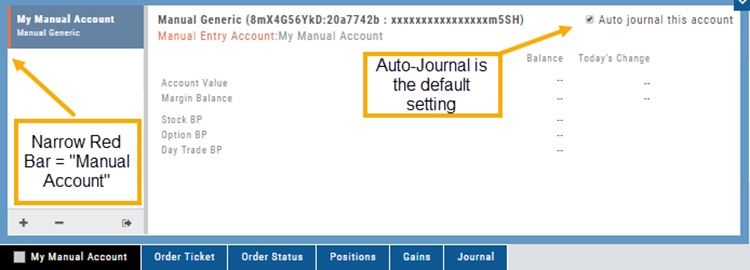
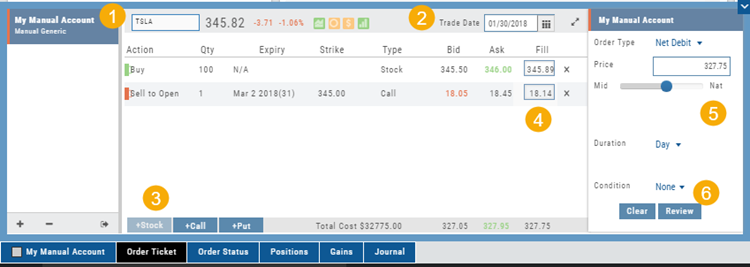
Entering trades in a Manual Account takes only a few steps and is similar to a regular trade.
You can also bring up the ticket from any trade point. Simply start a trade and select the manual account just like you would select any other account.
(Bold indicates unique to Manual ticket):
1. Enter the Stock Symbol, or name of Company (Smart search will display potential matches)
2. If this is a past trade, use the calendar/date picker to select date
3. Click “Stock”, “Call” or “Put” to build trade, change quantity, Expiry and Strike (if applicable)
4. Bid/Ask will automatically populate if a specific price is not entered
5. Complete Order Type, Duration and Condition
6. Click “Review” to confirm information is correct, then ‘Submit” on next screen.
The order will appear in Order Status as “Executed” and operate the same way as other accounts.
Journal Navigation

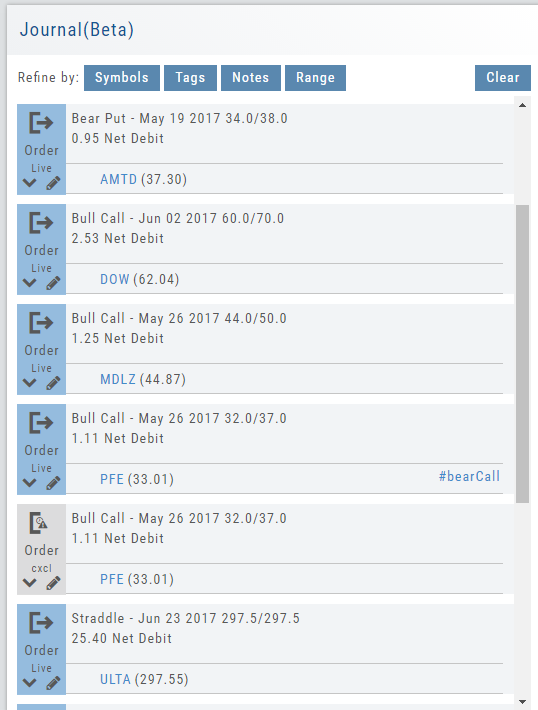
It’s easy to look up trades. Choose from Stock symbols, tags used (ex: #bullCall, #longStraddle), Notes containing certain words or phrases, or date ranges from 1 Day to 1 Year.
On the individual Trade tabs, click the  icon to expand the trade detail. To edit/add tags, notes, to the trade entry, click
  then ‘save’ when completed.
Once the Trade Tab is expanding , you have additional options: The “Replay” icon,  , sends a trade from the Journal to Backtest Analysis. You can delete a Journal Entry by clicking on
  .
.
Virtual Account Overview
Virtual Trading gives you the real trading experience without risking any money. It is a valuable “next step” learning tool – designed to mimic the trading experience as closely as possible.
Trades are executed during Market hours – 9:30 a.m. – 4 p.m. Eastern Time, however there is a 15 minute delay after Market open for orders to begin executing.
As with Live Accounts, there are limits on trades if there is not sufficient Buying Power in your Virtual Account. There can be expensive Spread/Margin Requirements to adhere to.
Virtual Accounts do have limitations that Live Accounts do not have:
Virtual Accounts are not subject or responsive to Corporate actions such as buyouts, name or symbol changes, stock/option splits and strike price adjustments to name some examples.

Virtual Accounts are “Auto-Journaled”. This automatically keeps record of all trades for later analysis and reconciling.
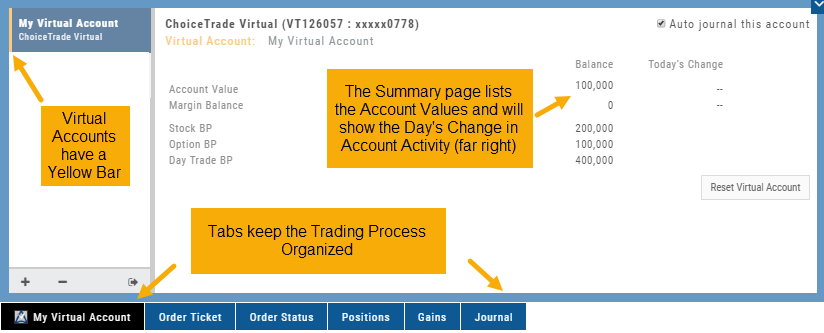
These practice accounts are identified by a yellow bar on the left side of the account window.
Virtual Accounts are powered by Choice Trade to provide the real trading experience.
Journal Account Multi-Selector
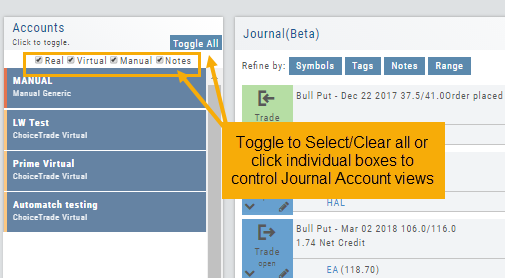
Reviewing your Journal Accounts is made easier by using the Multi-Select tool on the Journal Tab. Control your Journal Account Views by selecting from Live, Virtual, Manual accounts or Notes or any combination of these.
Use the “Toggle All” button to switch or toggle your selection. Example: If you have your virtual selected and not your real accounts, Toggle will switch to real account and unselect virtual account. This can be a great way to analyze your results and compare real and virtual.
You can further sort by Symbol, Tags, Notes or Date Range within an Account by using the following tabs in the Journal:

NOTE: Any filtering, including account selection, will refine your analytics results too. Want to find your results from a specific account. Select just that account and analytics will refect accordingly.
Position Download Ability
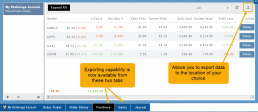
Downloading/exporting capability added to the Positions tab.
This feature is also available in the “Gains” tab.
This allows even greater flexibility with record-keeping from the Journal/Brokerage Account.
Reconcile Trade Notice
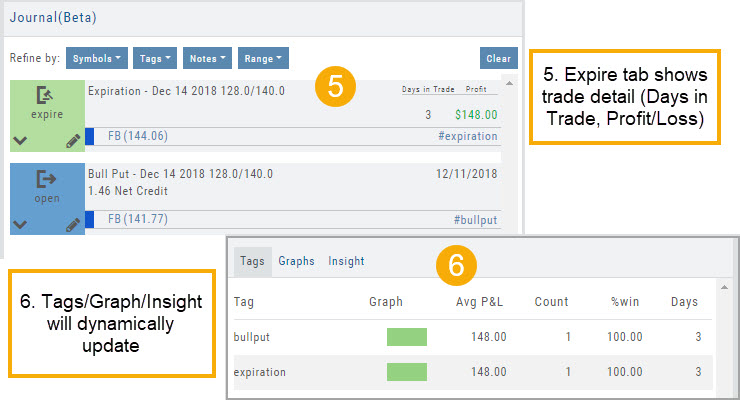
The Tags including the P/L Summary, Graph and new Insight tabs rely on updated Journal entries which includes reconciled trades.
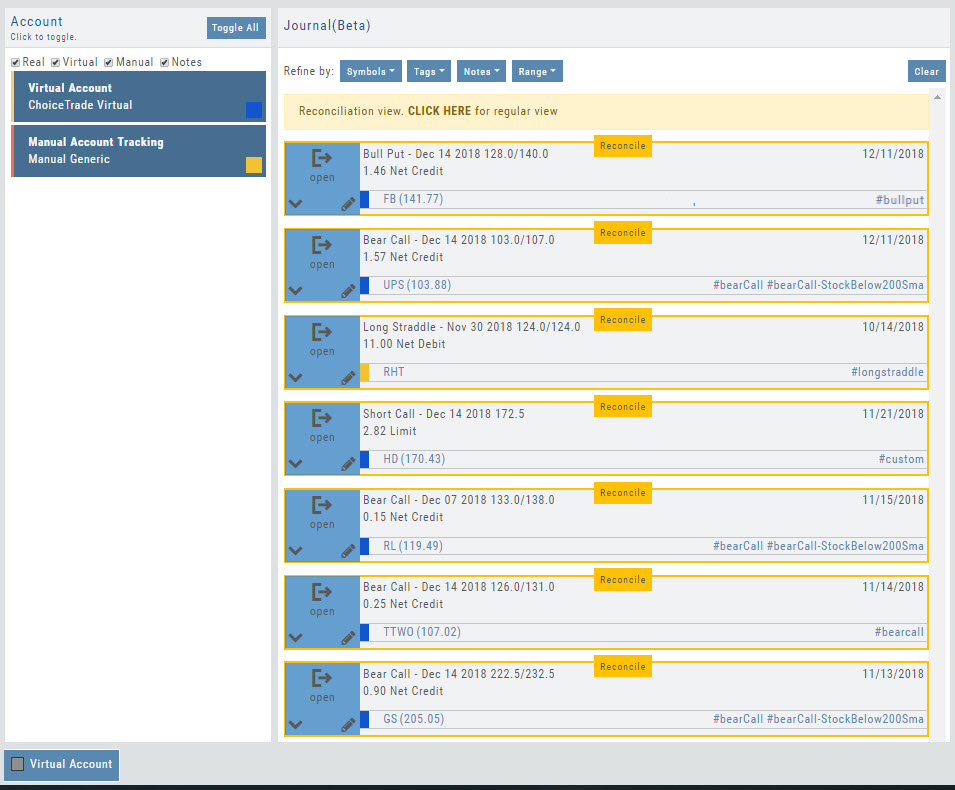
The following notice appears in the Journal when trades needs to be reconciled:

All trades in the trading account(s) selected will display with the option to change back to Regular View:
Individual trades are reconciled by clicking on the “Reconcile” tab outlining the Journal Entry.
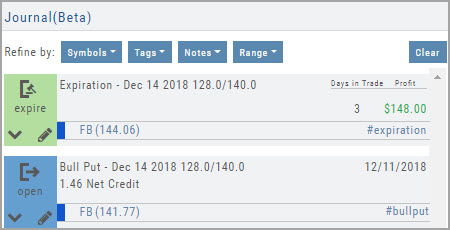
The Journal Tab will update showing the trade had a profit/loss or adjustment in the underlying.
Updating Journal Entries
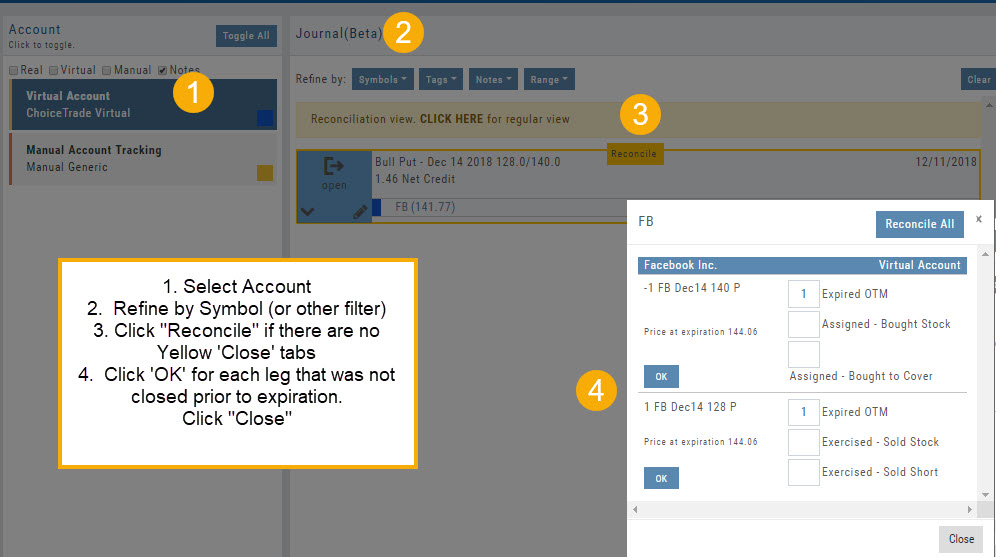
Logging into your account will update Journal entries for up to the last two months. However, trades that expired will need to be Reconciled. If the system is unable to match trades, a Yellow ‘Close’ tab will result, requiring manual action to close.
Follow the steps as shown below to reconcile your trades.
Note: Step 2 is not required, however, if you are just learning to use the Journal and it’s features, sorting by Symbol, especially if you have multiple trades, simplifies the process.
Symbol Journal
This is more than just documenting trades
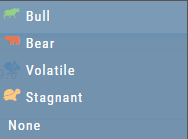
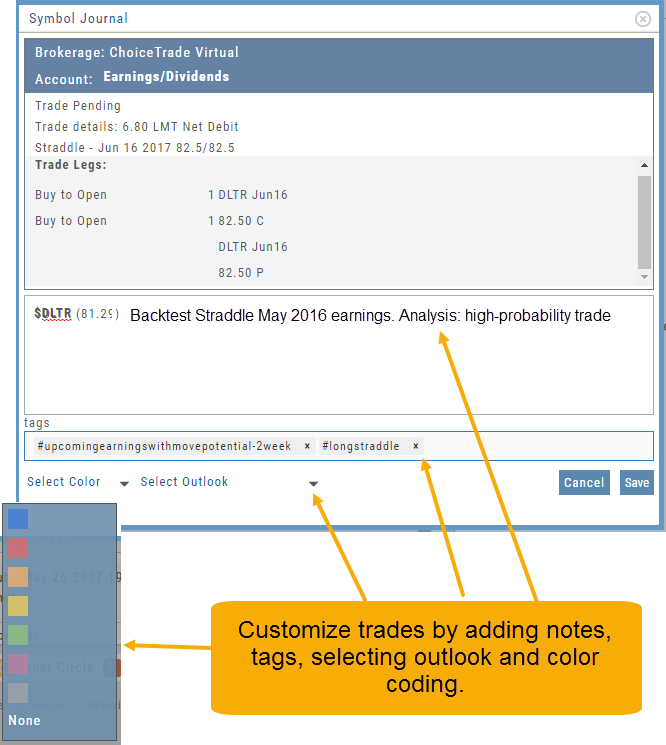
This Journal has benefits and features that allow you to truly customize a vital part of the trading process. Each trade allows you to: Make Notes, add Tags for organizational purposes as well as Color Tags you customize, Outlook icons further customize each trade entry.
Journal Tag Analytics
Want to know how effective your trading strategies and practices are? This is where you’ll get your answers
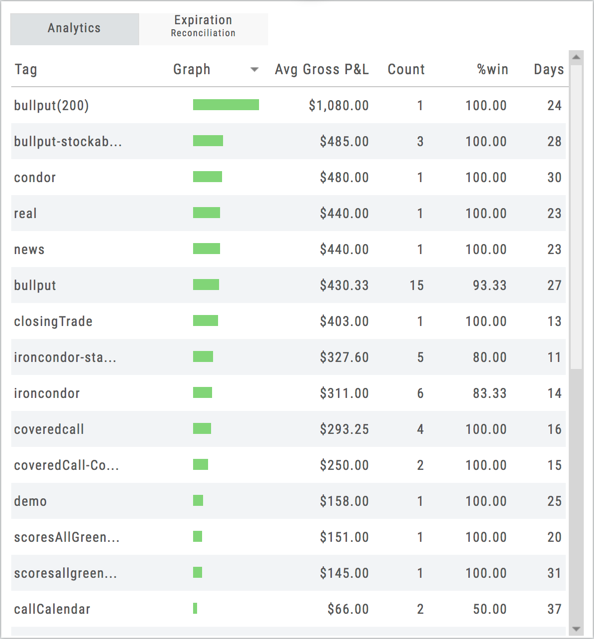
Get visual feedback broken down by strategies and analytical data including a Profit Graph, Average Gross P&L, the frequency of each strategy executed, % Win Ratio, Number of Days in a Trade.
Journal Analytics is a powerful tool to reinforce consistency in the practice of the trading process- from the overview, evaluation, research, execution and exiting. Journaling identifies what works, what needs more discipline, etc. Analytics provide this information in easy-to-read data.